How to Cancel Your Synthflow Subscription?
Last updated: November 24, 2025
We’re sorry to see you go - but we also want canceling to be as simple and stress-free as possible.
This article walks you through, step by step, how to cancel your Synthflow subscription from inside our platform.
Before you hit “cancel”, it’s worth taking a minute to:
Export anything you might need later
Download important call logs, transcripts, workflows, or reports you may want for your records.
Check who will be affected
If you’re on a Growth, Agency, or Enterprise plan with subaccounts, remember that canceling may affect those subaccounts too. Synthflow
Review your current billing period
Canceling stops future renewals. It doesn’t usually refund charges for the current or past billing periods automatically. If you think something looks off, you can always contact support to review.
Make sure you’re the right person
You’ll need to be an Admin to access Settings → Plan & Billing and the Billing Portal.
Step 1 – Log in to your Synthflow account
Go to synthflow.ai and sign in with your usual account.
If you manage multiple workspaces or subaccounts, select the organization/account whose subscription you want to cancel.
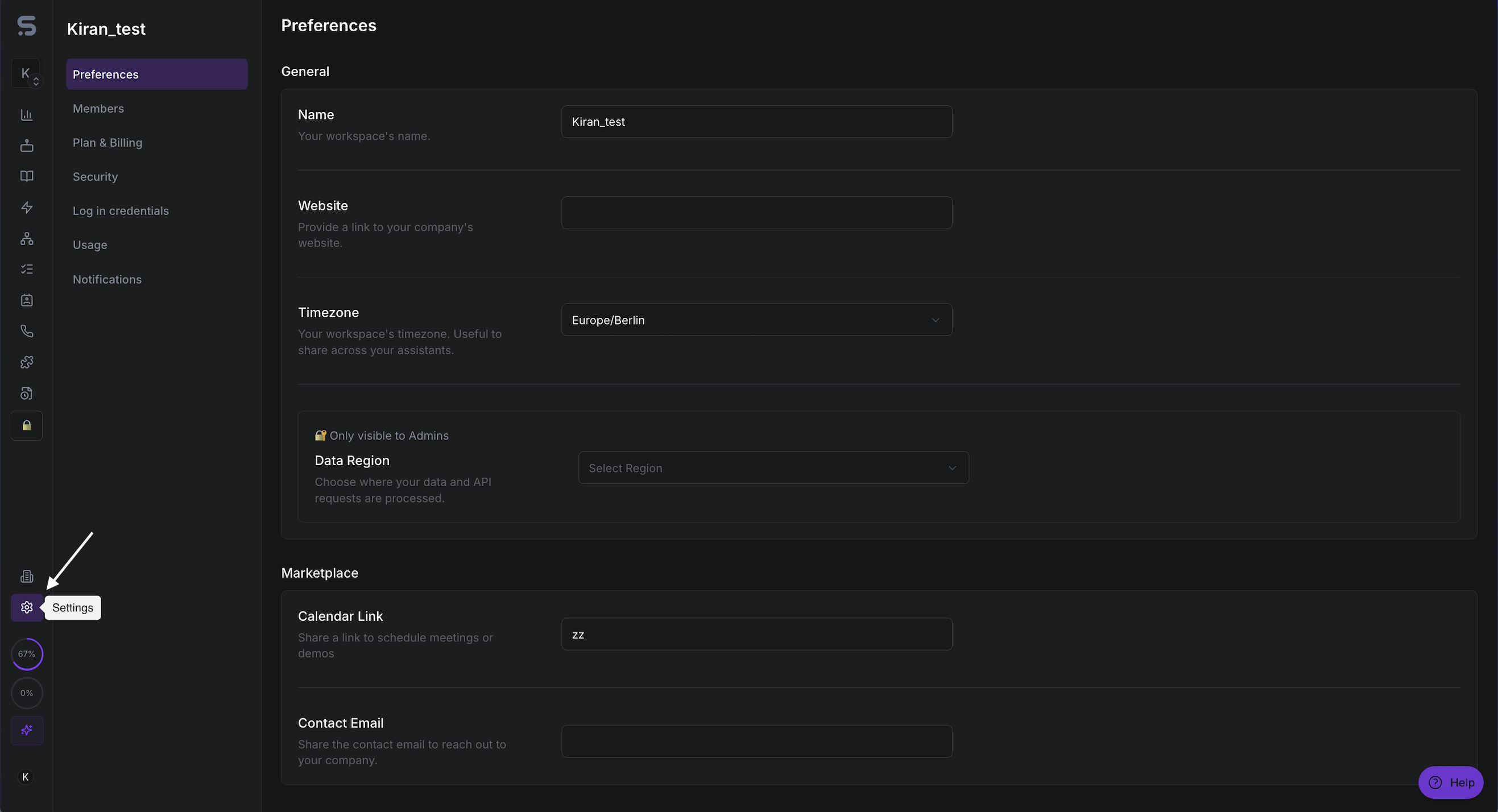
Step 2 – Open Settings
In the left-hand sidebar, click Settings.
This opens your account settings.
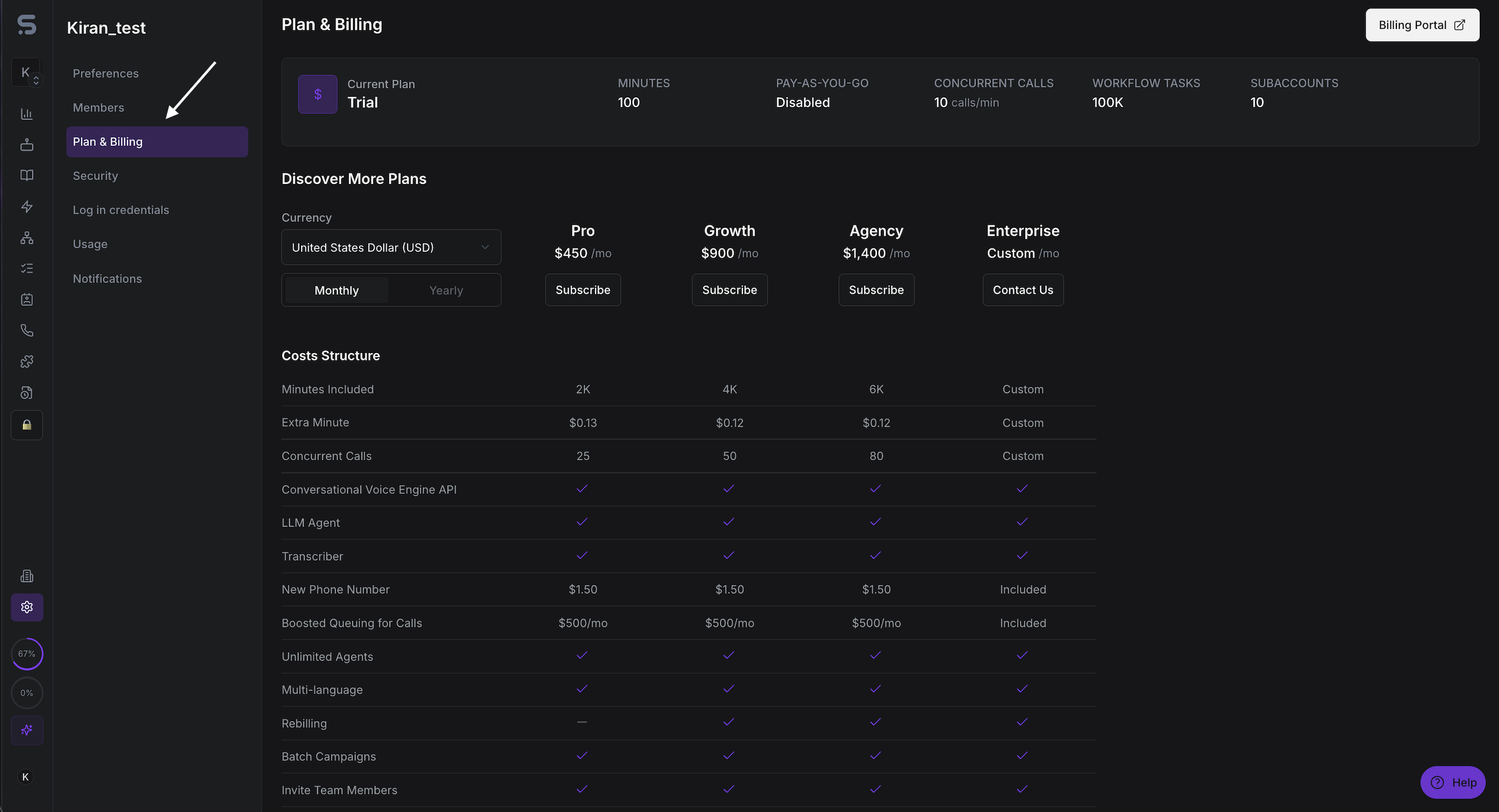
Step 3 – Go to Plan & Billing
Inside Settings, click Plan & Billing.
Here you’ll see:
Your current plan (e.g., Pro, Growth, Agency, Enterprise) Synthflow
Billing frequency (monthly/yearly)
Links to manage your Billing Portal.
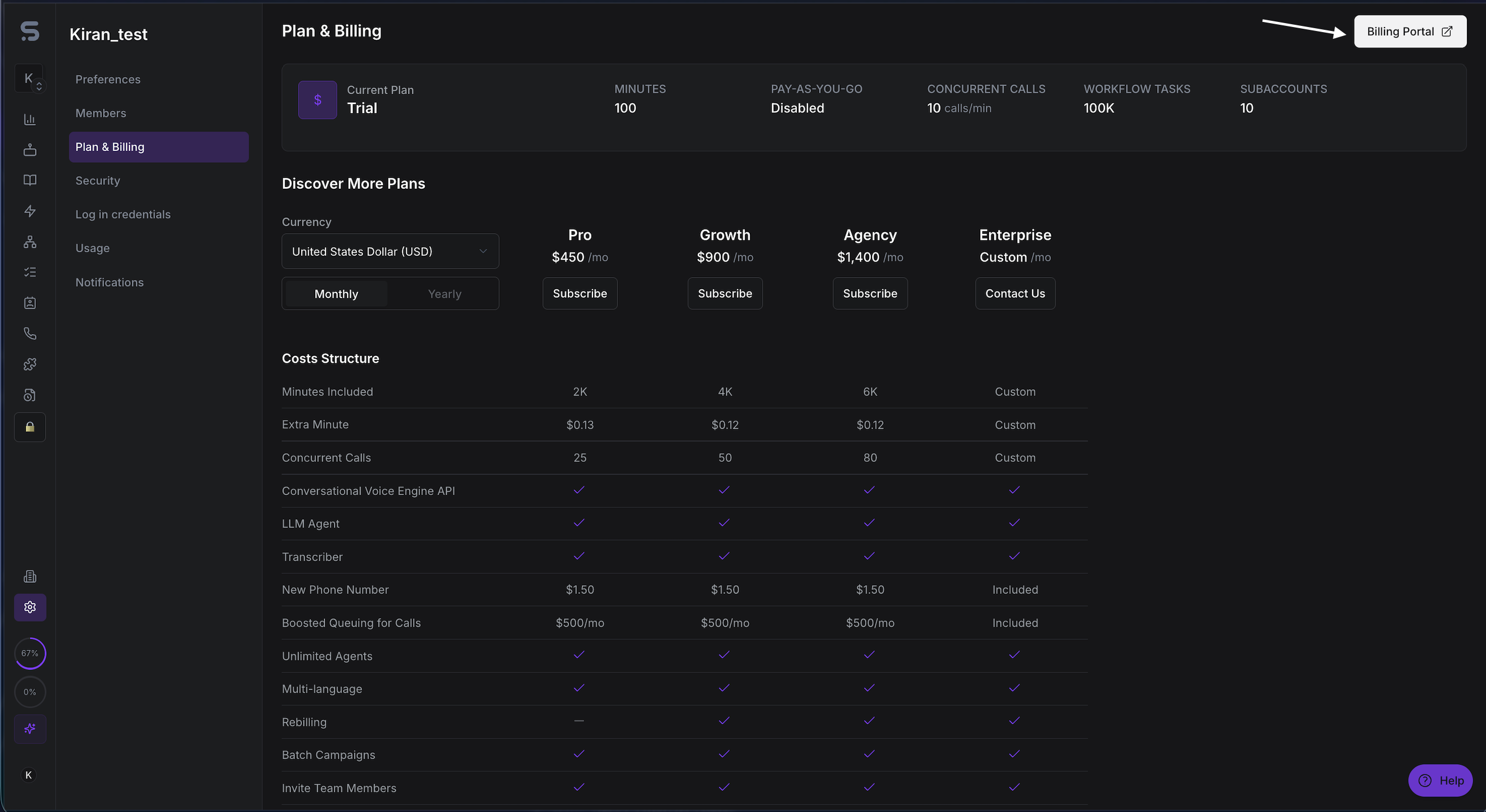
Step 4 – Open the Billing Portal
On the Plan & Billing page, click Billing Portal (usually at the top-right).
This opens a secure billing page (powered by our payment provider) where you can:
Update your payment method
Edit billing information (address, tax ID, etc.) docs.synthflow.ai
Manage subscriptions attached to your account (plan, phone numbers, add-ons). docs.synthflow.ai
Think of the Billing Portal as your “control center” for all charges tied to your Synthflow account.
Step 5 – Locate your active Synthflow subscription
In the Billing Portal, look for the section that lists your active subscription(s). You’ll typically see:
The plan name (e.g., Pro / Growth / Agency)
The price
Your next billing date
A link or button to manage or cancel the subscription
If you also subscribed to extra items (like phone numbers), those may appear as separate subscriptions you can manage individually.
Step 6 – Start the cancellation
Click the button labeled:
Cancel subscription
Step 7 – Continue with the Onscreen instructions to cancel the plan.
If you can’t access the Billing Portal
If you don’t see the Billing Portal button, or you’re blocked from accessing it:
You may not have the right permissions in your organization.
Ask your account owner or admin to follow these steps instead.
If the original subscription was set up offline (e.g. custom Enterprise contract directly with Sales), the cancellation might need to go through your account manager or support.
In that case, reach out through your normal Synthflow contact (e.g., your success manager, custom support) and include:
Your account email
Your Workspace ID
The plan you want to cancel
When you’d like the cancellation to take effect