How to connect Synthflow to FreshCaller (FreshWorks)
Last updated: September 10, 2025
Step 1 Add the Synthflow AI App to your Fresh caller account.
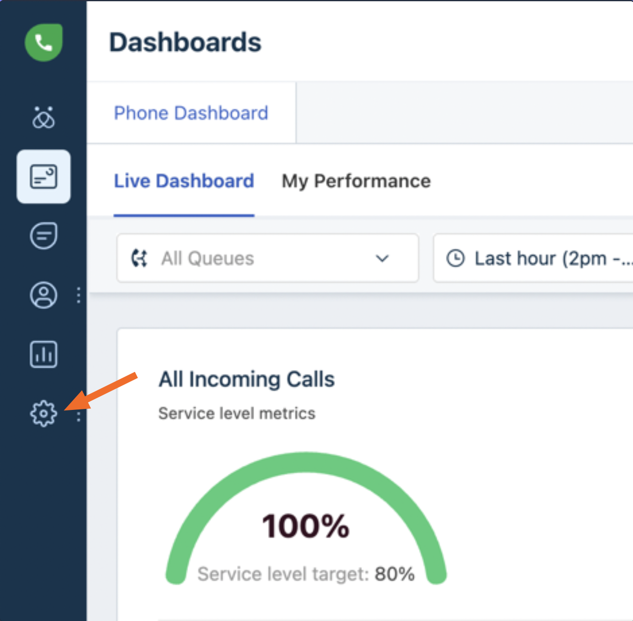
Click on the Settings button
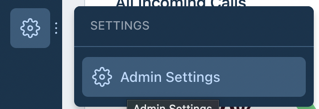
Click on Admin settings
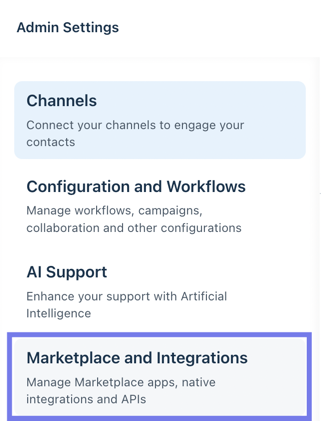
Scroll down to Market place and Integrations
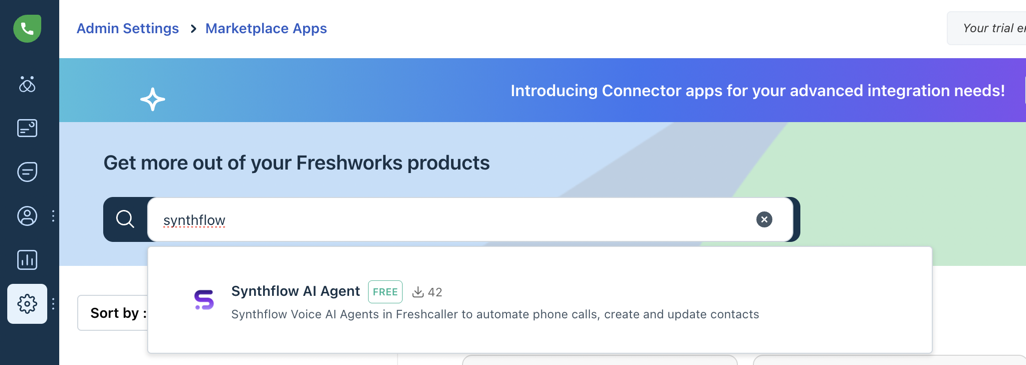
And find the Synthflow AI agent Marketplace App
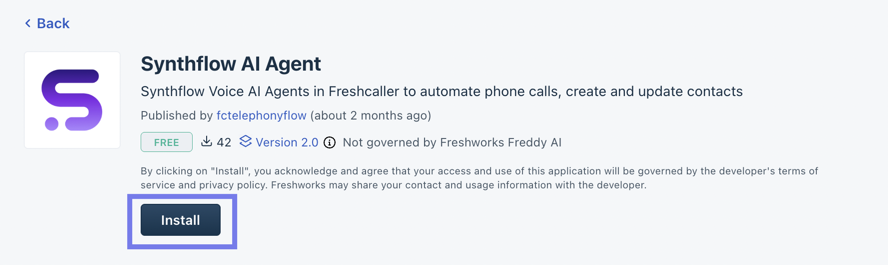
Click on Install to install the Synthflow AI Agent App.
Step 2 Configure the Synthflow AI Agent App.
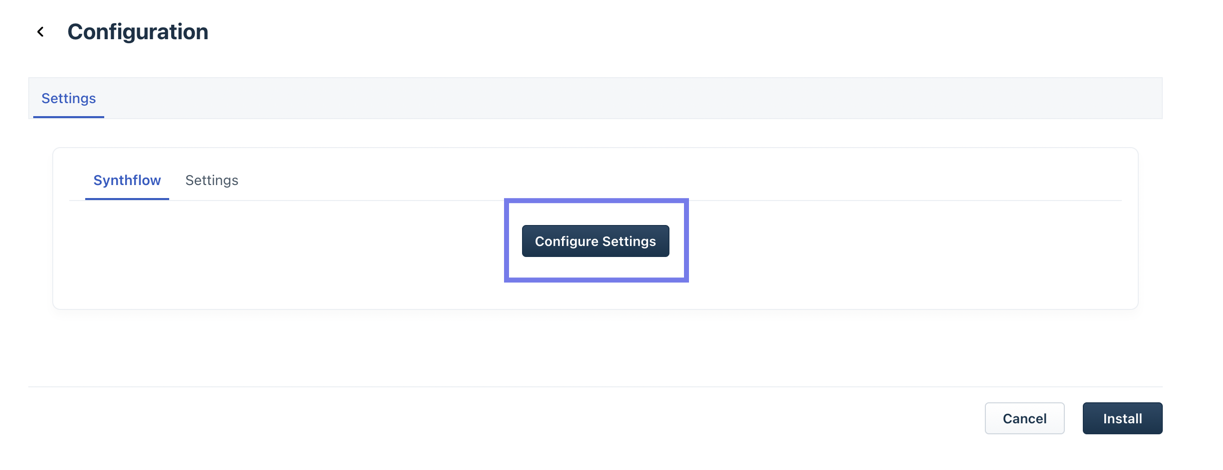
Click on "Configure Settings"
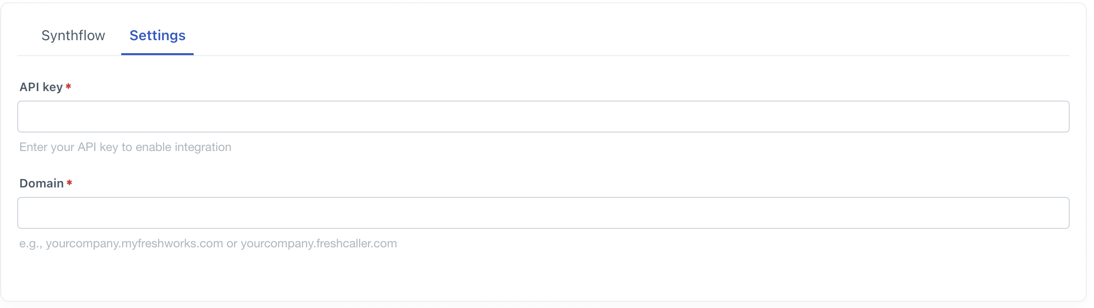
And add the "API Key" and "Domain" From Fresh caller. You can find these here.
You can find these by going back to settings and searching API
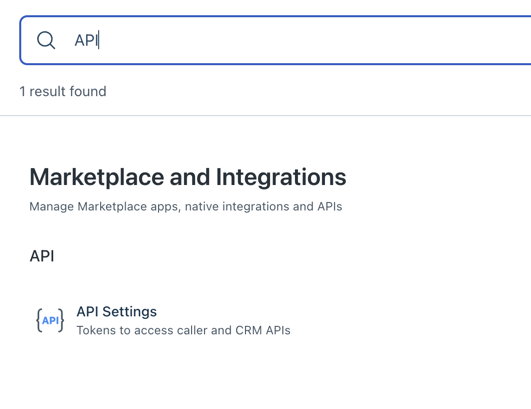
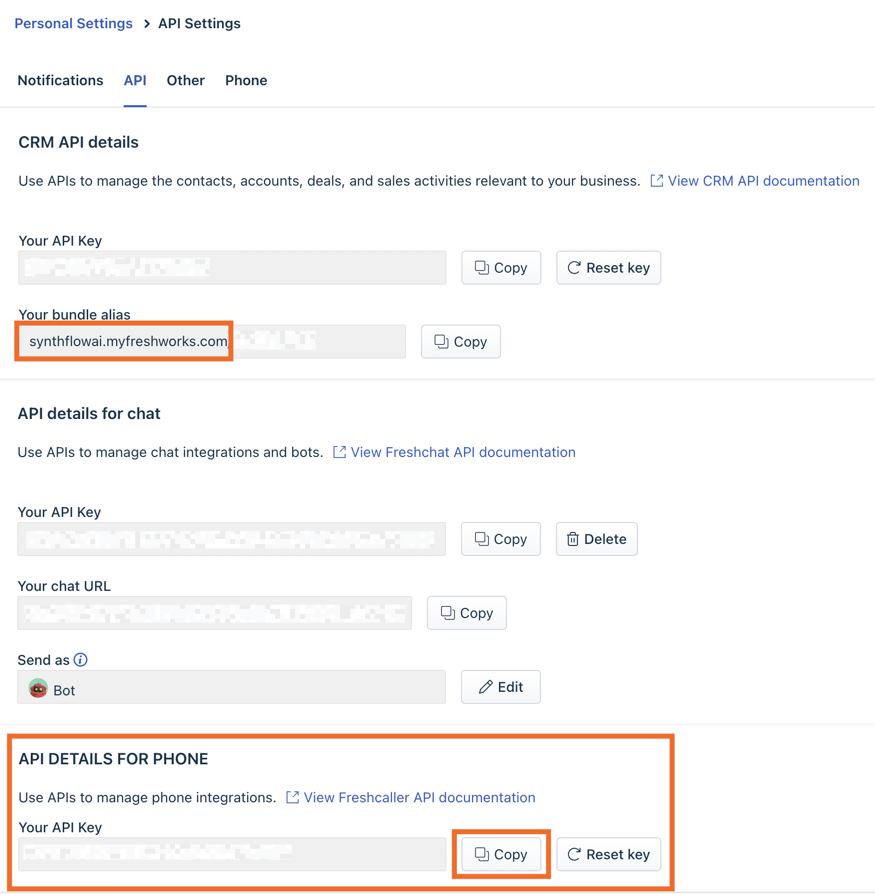
You will need the "Domain" here, the API details for phone as your two pieces of info.
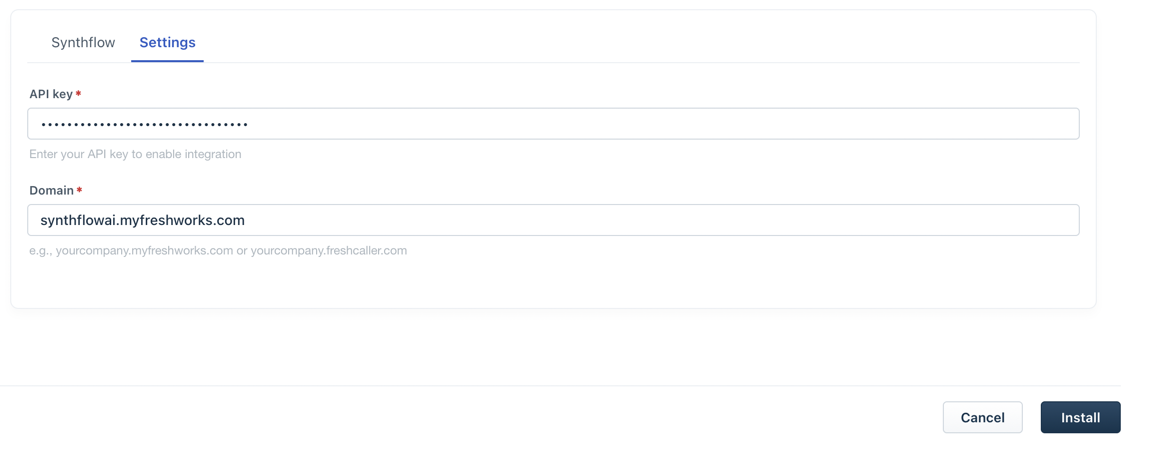
It should look like this. Then click Install.
Step 3. Getting into your Synthflow AI Account.
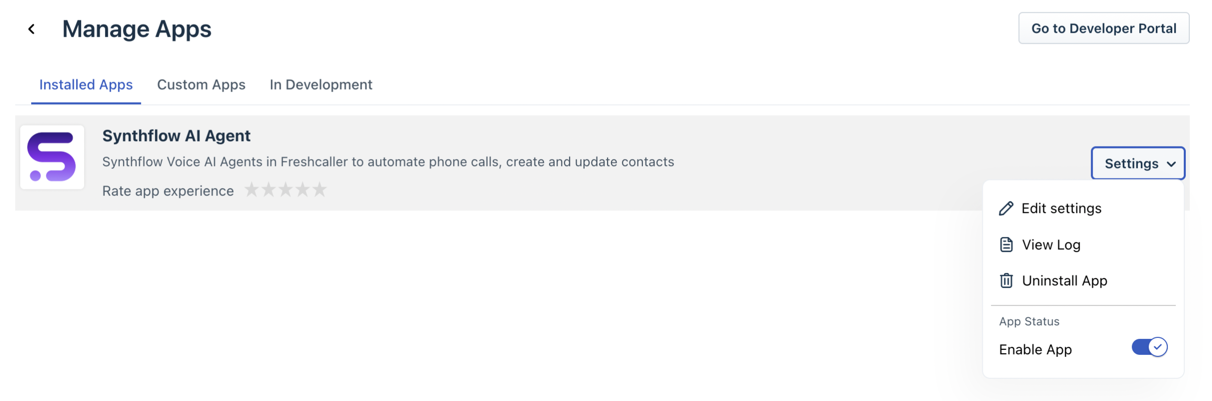
Click on Edit Settings
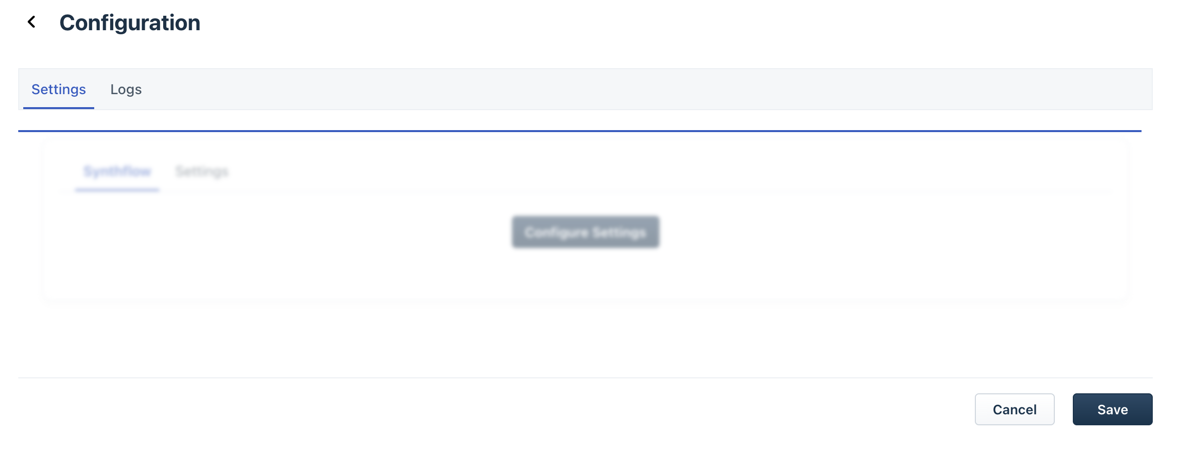
When you click on Edit settings this can take a few seconds to load before you see "Open Synthflow Portal". Please give it some time.
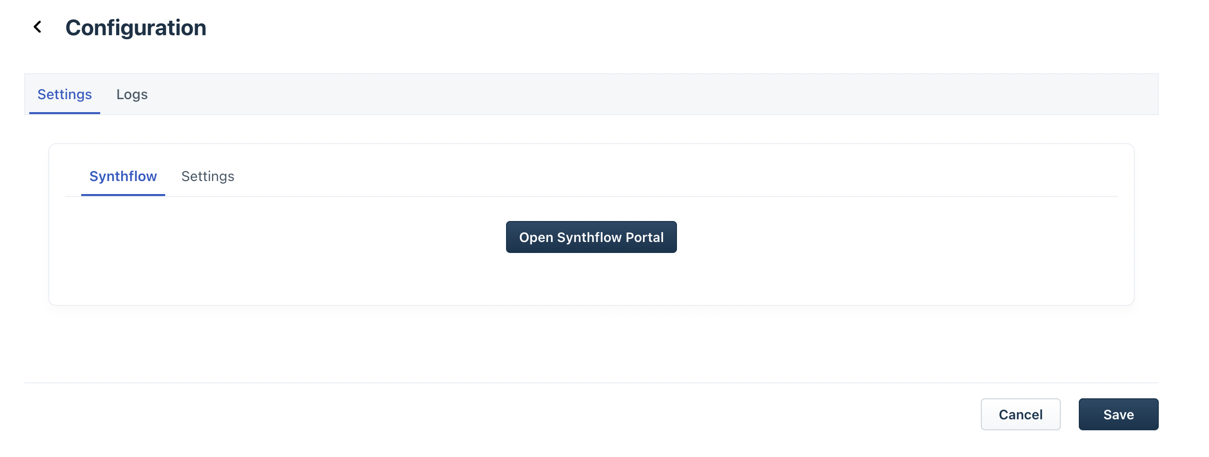
You should see Open Synthflow Portal here. This will open Your Synthflow AI Freshcaller account.
 Please note you will not be able to connect your already created Synthflow account to a Freshcaller account.